

 Amazing Race
 Choose Wisely
 Unlock the Box
 Mall Hunters
 Mission Impossible
 The Great Charity Race
 Clues to a Mystery


 Random Acts of Kindness

 Where in the World is the Crystal Snow Globe?
 The Big Escape
 Team Trivia
 The Feud
 Summer Olympics
 Winter Olympics
 Who Kidnapped Santa?





Not receiving our emails?
If Social Scavenger messages aren’t showing up, your inbox filters are usually the reason. Email providers often sort messages into Spam, Junk, or Promotions — even from senders you know.
Start with the quick fixes below, then follow the guide for your email app. Most people are back on track in a few minutes.

Quick Fixes
Try these first — they solve most delivery issues without changing account settings.
 Search your inbox for @socialscavenger.com
 Check your Spam, Junk, and Promotions folders
 If you find us, mark the message as "Not spam" or "Not junk"
- Add info@socialscavenger.com to your contacts
Still missing emails? Use the step-by-step instructions below for your email provider.
Gmail
Create a filter so messages from @socialscavenger.com skip Spam and land in your inbox.
-
Step 1
Open Gmail and click the gear icon, then select Settings.

-
Step 2
Select See all settings.

-
Step 3
Open the Filters and Blocked Addresses tab.

-
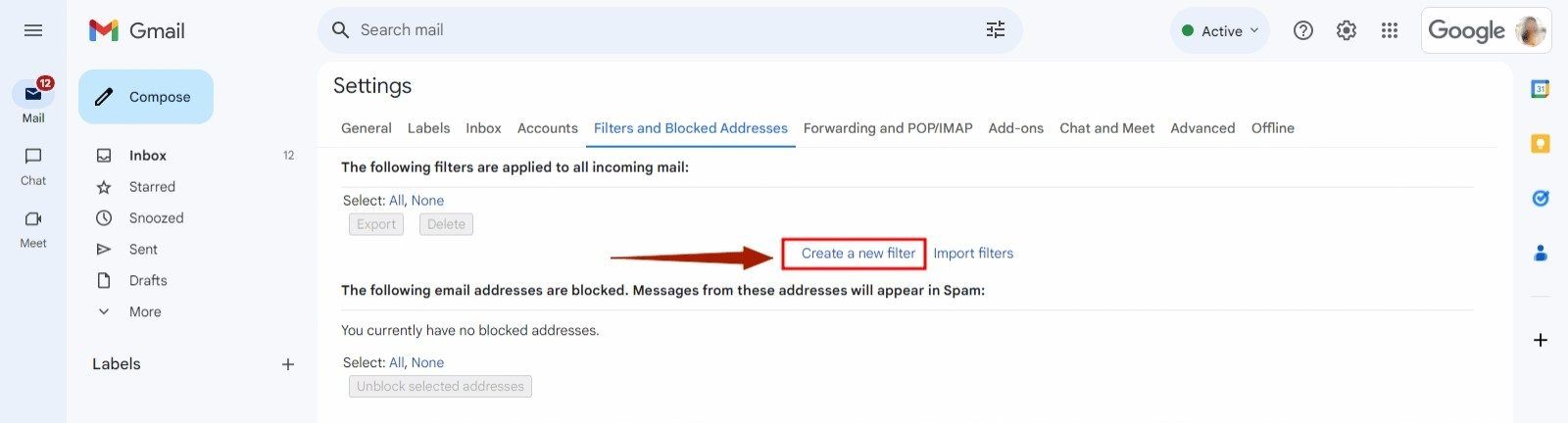
Step 4
Click Create a new filter.
-
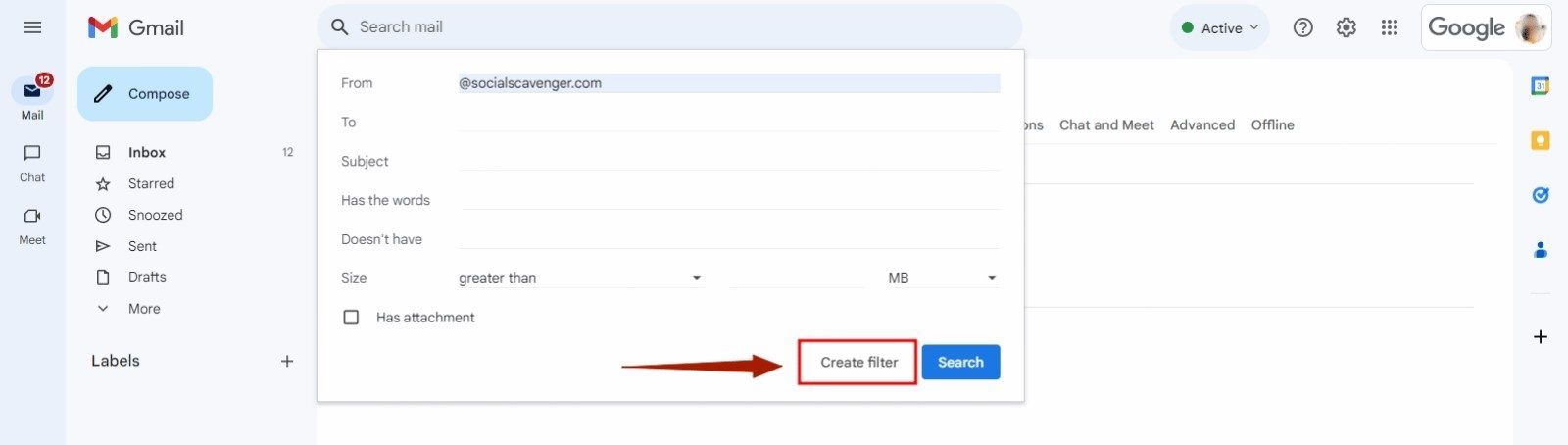
Step 5
In the From field, enter @socialscavenger.com.

-
Step 6
Click Create filter.
-
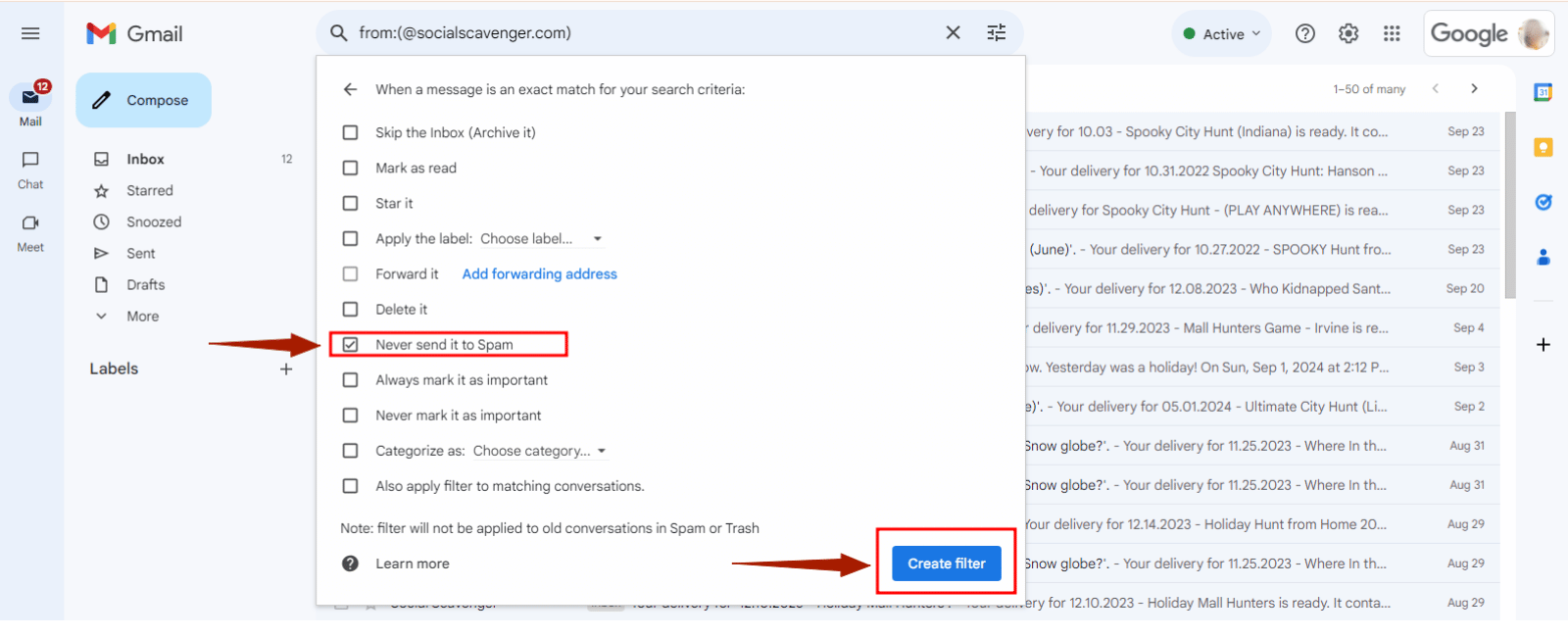
Step 7
Check Never send it to Spam, then click Create filter to save.


Outlook
Add Social Scavenger to your Safe Senders list so Outlook stops filtering our messages.
-
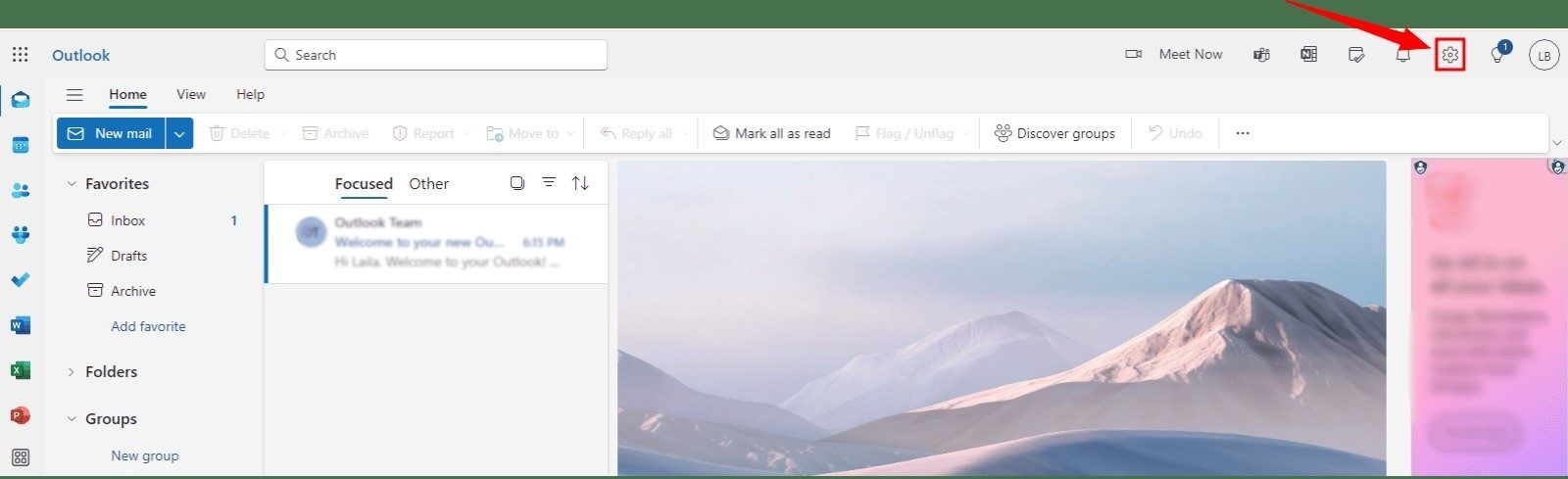
Step 1
Click the gear icon to open Settings.
-
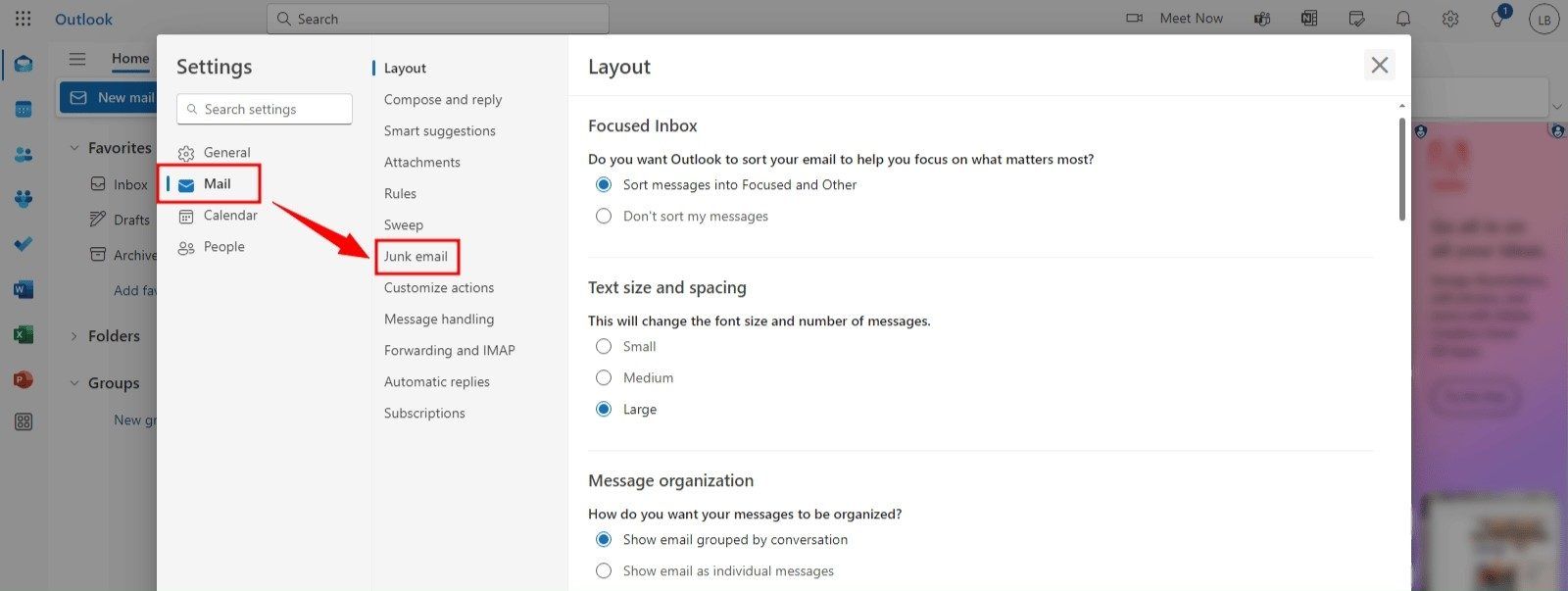
Step 2
Select Mail, then open Junk email.
-
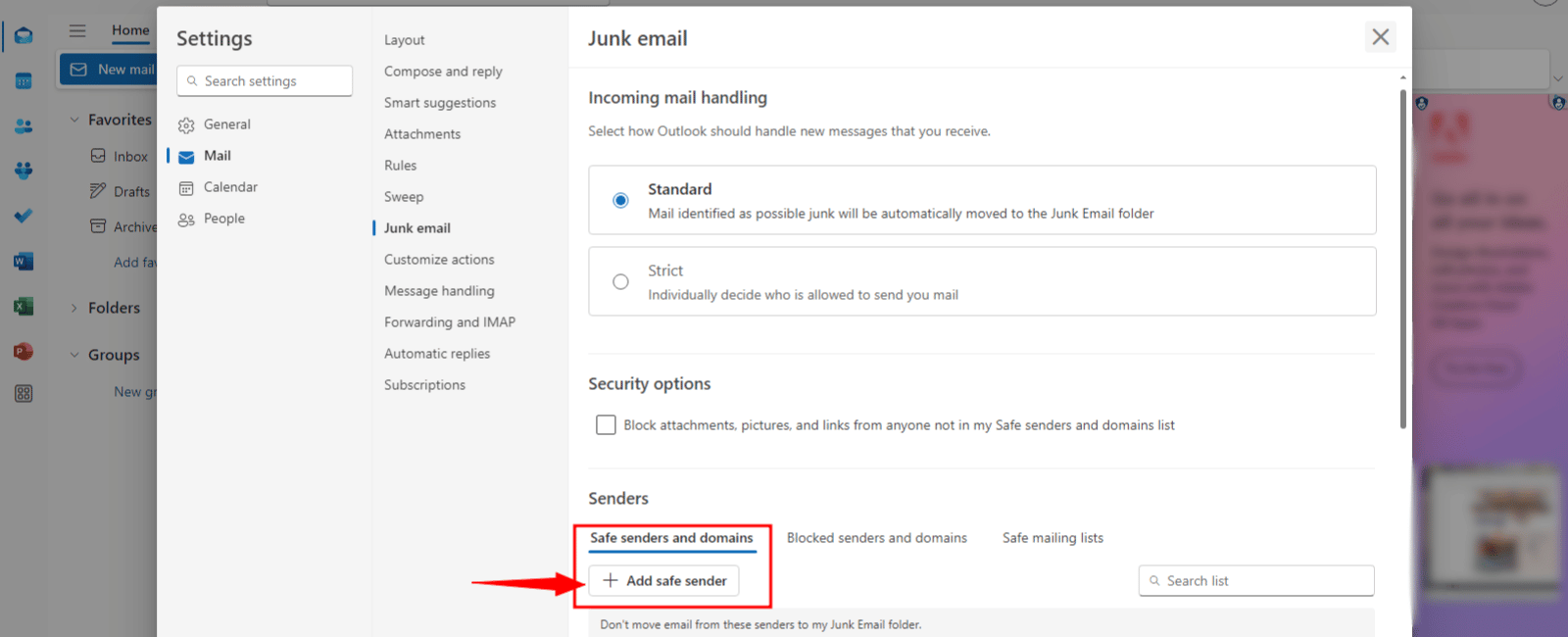
Step 3
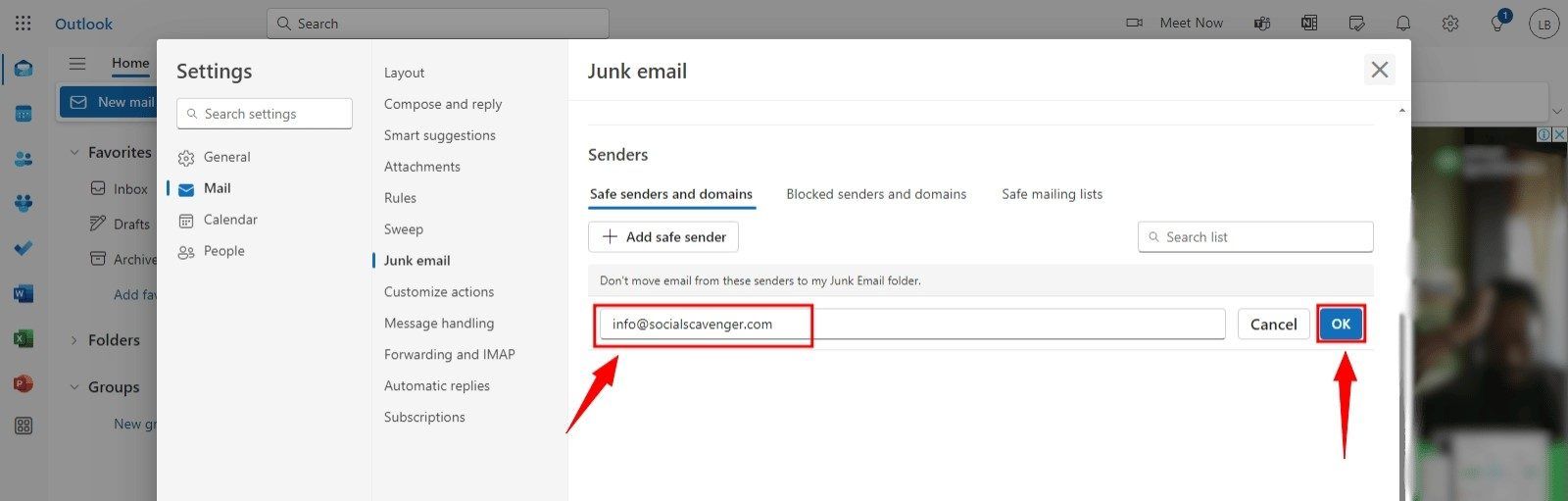
Under Safe senders and domains, click Add.
-
Step 4
Enter info@socialscavenger.com and click OK.
-
Step 5
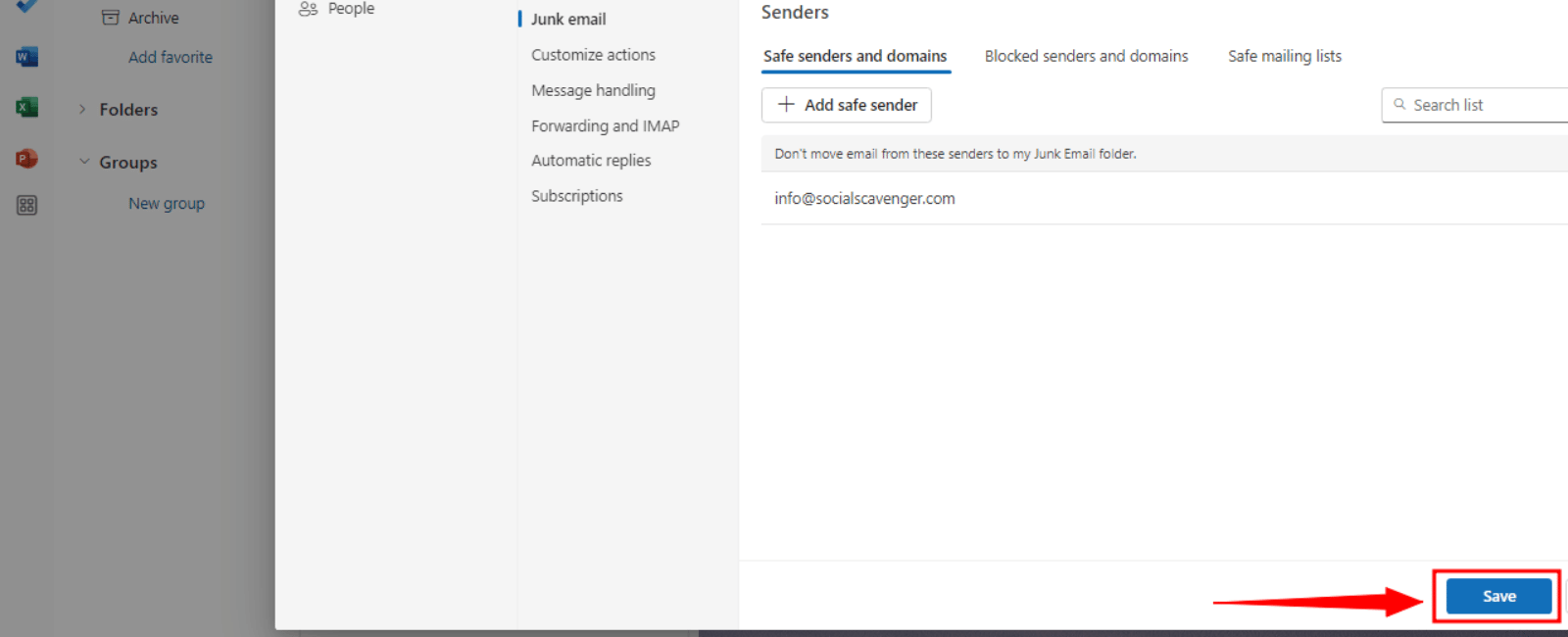
Click Save.


Apple Mail / iPhone
On iPhone, iPad, and Mac, a few taps tell Mail that Social Scavenger is a trusted sender.
-
Step 1
Find a Social Scavenger email
Search your inbox for @socialscavenger.com. Check Spam and Junk if nothing appears in your main inbox.
-
Step 2
Mark us as safe
Open the message, tap the sender name, then choose Mark as Not Junk or move the email to your inbox.
-
Step 3
Add us to Contacts
Tap the sender name and select Add to Contacts. On Mac, you can also go to Mail → Settings → Junk Mail and add @socialscavenger.com to your allow list.
-
Step 4
Optional: add a VIP (iPhone)
In Mail, tap the sender name and choose Add to VIP so our messages stay easy to find.
Troubleshooting Checklist
Work through this list if messages still aren’t appearing after the steps above.
- Check your Spam folder
- Check your Promotions folder (Gmail)
- Search for @socialscavenger.com
- Mark emails as "Not spam" or "Not junk"
- Add Social Scavenger to your contacts
Need More Help?
If your provider isn’t listed or you’re still not receiving emails, our team can help.
Call us at +1 855-619-7529 or connect on social — whichever is easiest for you.
Let Us Know How We Can Help.
Get In Touch Today 1.855.619.PLAY(7529)
Please provide us with as many details as possible and we'll do the rest.
